installing openwrt on tp-link router via tftp
so what if i tell you i am in a good mood today?
i don't want this energy to go waste! today might be one of those days where i will not say you a word even if you smash my laptop! i had a router lying around for a while (i have procrastinated on installing openwrt on my hardware for long, so today might be the day), let's flash it with openwrt! welcome to the guide on how to flash openwrt on tplink routers (mine specifically is model tl-wr850n)
here's an image of the model.
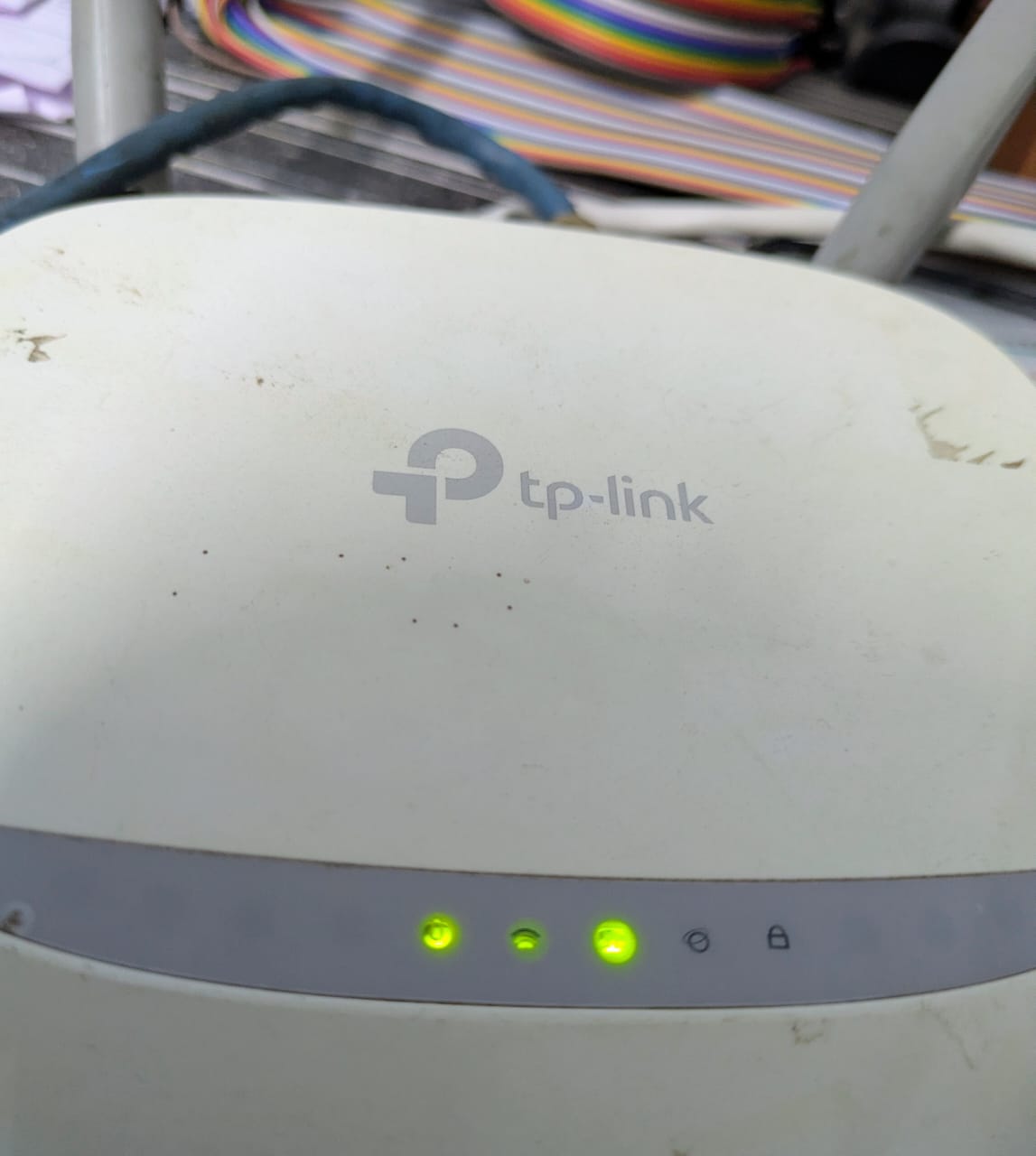
random electricity strikes in monsoon season have bricked a lot of routers of mine over time, so i had a spare one lying around for next time that happens.
up until few months ago, prior to my internship, i had no idea about openwrt, but lately i tinker with it a lot, so why not experiment with it a little more.
i hope you already know how to set up a tftp server! if not, you've come to the right place!
i installed tftpd-hpa, which is the standard TFTP server (and the only one i knew of) for debian/ubuntu-based systems.
sudo apt install tftpd-hpa
the default configuration is at /etc/default/ttpd-hpa. here's what mine looked like
TFTP_USERNAME="tftp"
TFTP_DIRECTORY="/var/lib/tftpboot"
TFTP_ADDRESS="127.0.0.1:69"
TFTP_OPTIONS="--secure"
i copied the openwrt firmware to the TFTP directory and renamed it to what the tp-link router expects, which is tp_recovery.bin. the browsing through the web, it hit me that this is not consistent. a lot of models expect different names.
i too had to open wireshark and capture and see what is the tftp protocol asking for
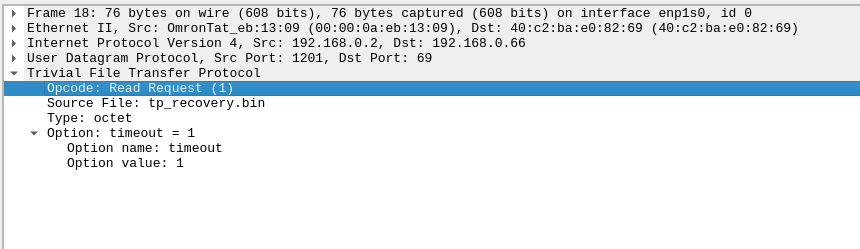
one of the roadblock that i had no idea about was that i had to fix permission of the bin fil so the TFTP server (running as user tftp) could read it:
sudo chown tftp:tftp /var/lib/tftpboot/tp_recovery.bin
sudo chmod 644 /var/lib/tftpboot/tp_recovery.bin
i started the tftp server with the command sudo systemctl status tftpd-hpa, hoping it'd take a minute or two, but no. are things that easy, never?
the tftp server that wasn't really running
i configured my PC's network interface to be on the same subnet as the router's recovery mode IP:
sudo ip addr add 192.168.0.66/24 dev enp1s0
sudo ip link set enp1s0 up
the router in tftp recovery mode uses 192.168.0.2, and my PC was 192.168.0.66.
i powered on the router in recovery mode (holding the reset button while plugging in power). I could see it in tcpdump, sudo tcpdump -i enp1s0 port 69
IP 192.168.0.2.2250 > pop-os.tftp: TFTP, length 34, RRQ "tp_recovery.bin" octet timeout 1
Beautiful! The router was asking for the file. But then... nothing. Just the same request over and over again, every 30 seconds. No response from my PC.
Debugging with tcpdump
I ran tcpdump with more detail to see what was actually happening:
bashsudo tcpdump -i enp1s0 -e -n host 192.168.0.2
This showed me the ethernet frames with MAC addresses and everything:
12:45:16.342929 00:00:0a:eb:13:09 > ff:ff:ff:ff:ff:ff, ethertype ARP (0x0806), length 60: Request who-has 192.168.0.66 tell 192.168.0.2
12:45:16.342955 40:c2:ba:e0:82:69 > 00:00:0a:eb:13:09, ethertype ARP (0x0806), length 42: Reply 192.168.0.66 is-at 40:c2:ba:e0:82:69
12:45:16.351039 00:00:0a:eb:13:09 > 40:c2:ba:e0:82:69, ethertype IPv4 (0x0800), length 76: 192.168.0.2.1437 > 192.168.0.66.69: TFTP, length 34, RRQ "tp_recovery.bin" octet timeout 1
12:45:16.351071 40:c2:ba:e0:82:69 > 00:00:0a:eb:13:09, ethertype IPv4 (0x0800), length 104: 192.168.0.66 > 192.168.0.2: ICMP 192.168.0.66 udp port 69 unreachable, length 70
THERE IT IS!
icmp 192.168.0.66 udp port 69 unreachable
MY PC WAS ACTIVELY REJECTING THE PACKETS.
i checked what was actually listening, sudo lsof -i :69
nothing. empty output. even though systemctl said the service was running!
i tried running the TFTP server manually with verbose output to see what was happening, sudo systemctl stop tftpd-hpa and sudo /usr/sbin/in.tftpd -L -vvv -a 0.0.0.0:69 -s /var/lib/tftpboot
then triggered the router recovery again. watched tcpdump in another terminal... router sent requests... and the manual TFTP server showed absolutely nothing. no log output. no indication it received anything. the packets were visible in tcpdump but never reaching the TFTP application. this meant something was dropping them at the kernel level before they could reach the application.
like any sane person i disabled the firewall and blamed it
kill everything and start fresh
the problem? an old TFTP server process was probably still running from earlier attempts, bound to the wrong interface or in a zombie state. when i "restarted" the service via systemd, it might have failed to actually start a new process because the old one was still holding the port (or thought it was).
# i said f it and killed all the processes related to in.tftpd
sudo pkill -9 in.tftpd
# gotta verify if nothing is listening on port 69 now
sudo lsof -i :69

# and started the service fresh
sudo systemctl start tftpd-hpa
also,
sudo lsof -i :69

Output:
COMMAND    PID USER   FD   TYPE DEVICE SIZE/OFF NODE NAME
in.tftpd 33576 root    4u  IPv4 252242      0t0  UDP *:tftp
finally! the TFTP server was actually listening on port 69.
with the TFTP server finally configured correctly and actually listening on the network, i power-cycled the router one more time. held the reset button, plugged in power, waited for the recovery mode... started tcpdump to watch the magic happen:
sudo tcpdump -i enp1s0 -e -n host 192.168.0.2
this time, instead of ICMP unreachable messages, i saw:
12:48:03.804887 00:00:0a:eb:13:09 > 40:c2:ba:e0:82:69, ethertype IPv4 (0x0800), length 60: 192.168.0.2.2205 > 192.168.0.66.46446: UDP, length 4
12:48:03.804918 40:c2:ba:e0:82:69 > 00:00:0a:eb:13:09, ethertype IPv4 (0x0800), length 558: 192.168.0.66.46446 > [192.168.0.2.2205](192.168.0.2.2205): UDP, length 516
12:48:03.805053 00:00:0a:eb:13:09 > 40:c2:ba:e0:82:69, ethertype IPv4 (0x0800), length 60: 192.168.0.2.2205 > 192.168.0.66.46446: UDP, length 4
12:48:03.805057 40:c2:ba:e0:82:69 > 00:00:0a:eb:13:09, ethertype IPv4 (0x0800), length 558: 192.168.0.66.46446 > 192.168.0.2.2205: UDP, length 516
BEAUTIFUL PACKET EXCHANGE! what's happening here:
UDP, length 4 - Router sending ACK packets (acknowledging received data blocks) UDP, length 516 - My PC sending DATA packets (512 bytes of firmware data + 4 bytes TFTP header)
the problem is that i expected even tftp logs to show something, but no logs were being printed. i guess tftpd-hpa doesn't do verbose logging by default. oh well, let's be glad, tcpdump is doing it's job good enough.
the 8MB firmware file was being transferred 512 bytes at a time. the tcpdump output was scrolling rapidly with hundreds of these exchanges per second.
note that TFTP switches from port 69 to a random high port (46446 in this case) after the initial request. this is why earlier when I was monitoring port 69 only, i wasn't seeing the actual transfer, it happens on a different port!
i just sat there watching tcpdump scroll by, afraid to breathe or touch anything in case it broke again (or more worse, i brick my extra router). after a few minutes of continuous packet exchange, the transfer completed:
12:48:03.806750 40:c2:ba:e0:82:69 > 00:00:0a:eb:13:09, ethertype IPv4 (0x0800), length 46: 192.168.0.66.46446 > 192.168.0.2.2205: UDP, length 4
12:48:06.943308 40:c2:ba:e0:82:69 > 00:00:0a:eb:13:09, ethertype ARP (0x0806), length 42: Request who-has 192.168.0.2 tell 192.168.0.66, length 28
the router stopped responding to ARP requests. itt was rebooting to flash the firmware! it was time for wireless freedom (openwrt's slogan).
the router had rebooted. Time to access the shiny new openWrt interface! i tried visiting the web via 192.168.0.1. nothing. connection refused.
i did,
ping 192.168.0.1
From 192.168.0.66 icmp_seq=1 Destination Host Unreachable
hmm. maybe it takes a while to boot? waited 2 minutes (with the tp link firmware, i am sure the device took much less time to boot then it does right now). still nothing. then it hit me, openwrt defaults to 192.168.1.1, not 192.168.0.1! different subnet entirely.
reconfigured my network interface:
sudo ip addr flush dev enp1s0
sudo ip addr add 192.168.1.100/24 dev enp1s0
sudo ip link set enp1s0 up
tried again and opened the browser/web interface at 192.168.1.1 and voila, there it was! the openwrt web interface!
and wooh, now i can ssh into my router too! is there a better feeling than that of trying a new distro and successfully logging into it?

my internet is working too slow. i blame the hardware offloading. i am still figuring things out. i want to set up a wireguard instance. i recently needed a file when i was not at home. casually. my brother was at home, so he assisted me in file sharing, but for future i need my vpn
i made a new ssid and connected the wan to my lan of my gtpl fiber connection hoping to try new packages and things.
rant
i ranted the whole day on how the new ssid i created is too slow. i already had a little idead that the openwrt does impact the network connection and the throughput isn't what you expect with the propetiary os.
later it hit me how the traffic would be flowing and yeah, double nat was the problem. the way i had it set up was lan → wan into openwrt, so it was unnecessarily routing and nat-ing everything again instead of just bridging traffic like an access point should.
i reconfigured the openwrt to be an access point only, disabled dhcp and set the lan ip to be in the same subnet as my main router. boom! speeds were back to normal.
for posterity, if someone ever arrives to the same problem, below are the uci commands to set up openwrt as an access point only:
uci set dhcp.lan.ignore='1'
uci commit dhcp

uci set network.lan.proto='static'
uci set network.lan.ipaddr='192.168.0.2'
uci set network.lan.netmask='255.255.255.0'
uci set network.lan.gateway='192.168.0.1'
uci set network.lan.dns='192.168.0.1'
uci commit network

uci set network.wan.disabled='1'
uci set network.wan6.disabled='1'
uci commit network

/etc/init.d/network restart
/etc/init.d/dnsmasq restart
the thing that hit me is that when you hit the etc/init.d/network restart command, it will drop your ssh connection if you are connected over the lan interface. so be careful! this will be a problem when your main router is not in the same subnet as openwrt lan ip. gpt phrased it as classic AP-mode transition lockout, to which i was like, classic, aeh! cool.
for that you will need to assign your device a static ip then ssh again into the access point and reconfigure it to match your main router subnet.
i did a speed test after this and the i have to say the speeds are better and the experience overall is better than it was prior...
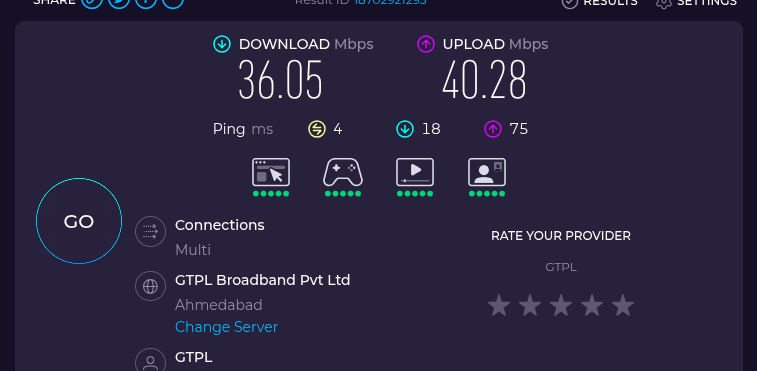 there are a lot of packages and things i want to try! first is setting up a vpn, so i can access my home network from anywhere. more on that later!
update: dt: 15/01/2026
reverse ssh tunnel for remote access
this was the reason i wanted to set up openwrt on my router in the first place. i wanted to access my home network remotely. well, i could have set up tailscale or wireguard on my computer instead, right? but i wanted to experiment with the router itself.
i don't know if i have mentioned already, but on opewrt too, my default plan was to install tailscale in the first place. there's this sick computer user i follow on twitter, and they worked on tailscale tui at neuralink (follow at x.com/kognise7). but flash memory of my router is only 2mb and the tailscale package alone is around 8mb, so well, that was a no go.
instead now the plan was to set up a reverse ssh tunnel from openwrt router to my vps, and then access my home network via the vps.
now my isp is not so great. even if i called the customer care, they'd have no idea what a port forward is. i did even call them and they told me to mail them about it. so the thing was i had to implement everything without disturbing the main router settings.
i already had a vps with a public ip (let's be thankful to student github plan). i was high on adrenaline to setup a reverse ssh tunnel from openwrt to my vps.
i made a new user and assigned it no shell access (for security reason)
also generated a ssh key pair on my openwrt router via ssh-keygen -t rsa -b 2048 -f /root/.ssh/vps_tunnel -N "" then copied the public key to my vps
the autossh struggle
i knew setting up autossh wouldn't be easy. i have had my fair share of it already.
i installed opkg install autossh on openwrt, and manually ran this command to test if it works:
AUTOSSH_GATETIME=0 \
AUTOSSH_PATH=/usr/bin/dbclient \
autossh -M 0 -N \
  -o ServerAliveInterval=30 \
  -i /root/.ssh/vps_tunnel \
  -R 127.0.0.1:2222:localhost:22 \
  tunnel@VPS_IP
tunnel appeared on the vps, i could ssh from the vps to my router via ssh root@127.0.0.1 -p 2222, everything worked. beautiful. but can we really have good things?
but when i tried to run it as a procd service? crash loop. every single time.
Instance reverse-ssh::instance1 is in a crash loop
and as any sane person i cursed a lot. cursed openwrt. cursed my life choices, but later it hit me, that there's nothing else i have to do except this crap on my computer. this is the only high i get!
i checked the logs via logread -f and simultaneously tried to login from the vps to see what was happening. the logs showed:
logread | grep autossh

> exit code 127. that's "command not found." ran `which autossh` and found it at `/usr/sbin/autossh`, not `/usr/bin/autossh`. classic. fixed the path in my service file.
restarted. still crashing. checked logs again:
bash
daemon.err autossh[8550]: /usr/bin/dbclient: Ignoring unknown configuration option 'ServerAliveCountMax=3'
oh. openwrt uses dropbear, not openssh. those -o ServerAliveInterval flags? dropbear doesn't understand them. dropbear has its own syntax. openssh uses -o ServerAliveInterval=30, dropbear uses -K 30.
fixed that. restarted. still crashing:
daemon.err autossh[8550]: Host 'myipisnoneofyourip' is not in the trusted hosts file.
ah, ok better. i thought i connected via ssh key once and trusted the host, but apparently not. i manually ssh-ed.
/usr/bin/dbclient -i /root/.ssh/vps_tunnel tunnel@myipisnoneofyourip
connected fine, saw "this account is currently not available" (because the tunnel user has no shell), but the connection worked. host key should be saved now, right?
now i am in a moral dillemma. do i want to share everything about my config. even the parts that are sensitive and i know are a security hazard? well, for now i did something dirty. i will not mention it here.
after all that debugging there was a zombie existing autossh process that hindered the new one from starting. i killed all autossh processes via pkill -9 autossh and restarted the service again on my openwrt router.
the current config file for autossh service is as below:
#!/bin/sh /etc/rc.common

START=99
STOP=10
USE_PROCD=1

start_service() {
    procd_open_instance

    procd_set_param command /usr/sbin/autossh \
        -M 0 \
        -N \
        -y \
        -K 30 \
        -i /root/.ssh/vps_tunnel \
        -R 127.0.0.1:2222:localhost:22 \
        tunnel@myipisnoneofyourip

    procd_set_param env AUTOSSH_GATETIME=0
    procd_append_param env AUTOSSH_PATH=/usr/bin/dbclient
    procd_append_param env AUTOSSH_PIDFILE=/var/run/autossh.pid

    procd_set_param respawn 3600 5 0
    procd_set_param stdout 1
    procd_set_param stderr 1

    procd_close_instance
}
and boom
ssh myvpsusername@MY_VPS_IP
ssh root@127.0.0.1 -p 2222
my router is now a a layer 2 bridge or a dumb access point with a reverse ssh tunnel to my vps for remote access. there's something that's still bugging me though. i can always see the devices connected to my openwrt router ssid via the arp table on openwrt, but i can't see the hostnames. i have looked into mDNS, but for some reason avahi-daemon package isn't available for the latest openwrt version. more on that later!
for now i have decided to write a device profile script that decides what device it is dependent on the ttl value (and the number of arp requests it sends and things) and map a device profile accordingly.
and here's the as-usual obligatory screenshot of the reverse ssh tunnel working. i first ssh-ed into my vps and then to it's this port i assigned that forwarded to my home router. later i did arp -a (and well because hostnames are not available and nmap scan will be waste of resources, i plainly guessed my laptop's ip from the mac address). and well then myhostname which is dharmik@laptops_ip and bam i was in my laptop.
next time when i am roaming outside and i out of where need or have an urge to look for a file, i can well just open termius app on my phone.
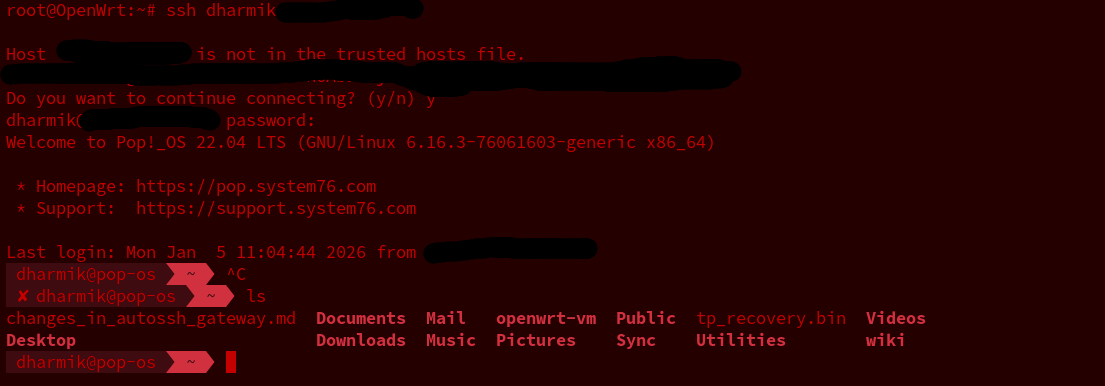
ofcourse, i have edited out all the things some moronic attackers might find interesting.